Blog

  • Upgrade SSD with Bitlocker

    I have a laptop with a 500Gig SSD, but it’s too small. So I bought a 2TB SSD and replaced it. Here’s how I did it.

    About the Laptop

    The laptop is a Fujitsu U9311. To replace the SSD it was a matter of removing 10 screws from the bottom and lifting off the base. No clips to worry about. The SSD has a M.2 slot right there. The technical docs are available here.

    Great job, Fujitsu, why did you stop making Laptops?

    For reference, when booting, F2 will give the BIOS Setup. In setup I disabled Fast Boot so the Boot Menu is available.

    Press F12 to get the boot menu.

    Bitlocker considerations

    I’ve replaced HDDs with SSDs a few times before, and upgraded SSDs as well. Without Bitlocker in the mix, the process is relatively straightforward (the process below is good for this, and you can also use gparted to expand the partitions).

    With Bitlocker, I needed to know that the process wouldn’t interfere. It turns out that Windows is quite anti-fragile and you can do the things you would expect and it works.

    The thing I didn’t risk is using a 3rd party tools to expand the Bitlocker partitions. That wasn’t a problem because Windows Disk Manager can expand a partition into any free space that exists after the partition.

    Tools

    The (free) software I used is openSUSE Leap KDE Rescue x86_64.iso which I copied onto a 2GB USB stick. This build boots on my laptop and contains the two tools I used:

    • dd
    • gparted

    Process

    1. Put the new SSD in the Laptop
    2. Put the old SSD in a USB adapter
    3. Boot openSUSE
    4. Open Terminal and run su
    5. Check the devices (old was /dev/sdb, new was /dev/nvme0n1)
    6. dd if=/dev/sdb of=/dev/nvme0n1
    7. In another terminal (su) find the process number of dd and watch progress
      • ps ax | grep dd
      • watch kill -n 30 -USR1 999
    8. Wait – I was copying 500GB onto a 2TB disk. It copied at 44Meg/s, so was about 3 hours.
    9. Remove the USBs (old and boot) and reboot to check everything still works. It did. No issues at all.
    10. Reboot into openSUSE
    11. Open Terminal and run su, and then gparted.
    12. Then, starting at the right hand end, move partitions to their new start positions (but don’t change the partition sizes).
      • I have two partitions I wanted to expand: C: and E:. They were the 3rd and 5th partitions on the list, with partitions for EFI and Recovery there as well.
      • If a partition is not to be expanded, move it as far right as it will go.
      • If a partition is to be expanded, move it right and leave additional space to the right.
      • The left-most partition to expand (C:), is left with free space after it.
      • The actual move took about 3 minutes to move two small Recovery partitions and one 200Gig old partition.
    13. Reboot to Windows
    14. Using Disk Manager (Right click on My PC, Computer Management, Disk Manager), expand the partitions with free space after them.
    15. That’s it. No fussing, nothing unexpected.

  • Changing Workgroup can break Windows

    I discovered a way to break Windows 10 and Windows 11.

    Install Windows so you are signing in with an Azure Active Directory Account, and then change the Workgroup so it is the name of an existing WORKGROUP on your network (which, of course, is the only thing you might want to change it to). You will now find your computer will not boot. When Windows boots, the circling dots just continue to circle. Reports on the internet suggest that this continues forever (I’ve left it for multiple hours) or that it eventually stops.

    The Windows repair function isn’t able to recover from this situation – and the only option is to reinstall Windows from the recovery disk. Ouch.

    Or you can follow this relatively simple procedure to change the Workgroup and get your system booting again:

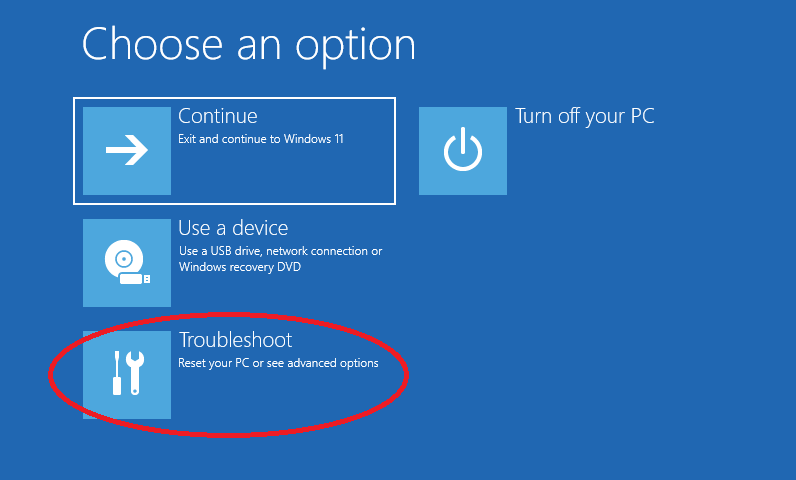
    Power off the computer and restart it – let the dots spin for a few seconds and repeat until you get the Windows Recovery screen.

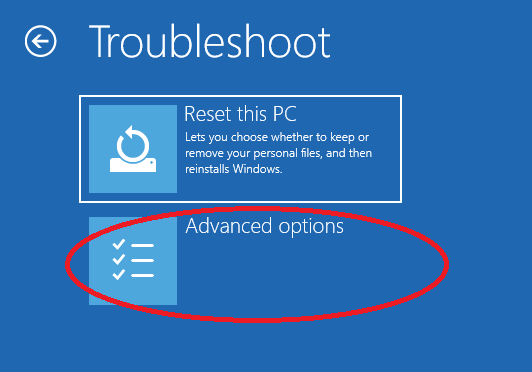
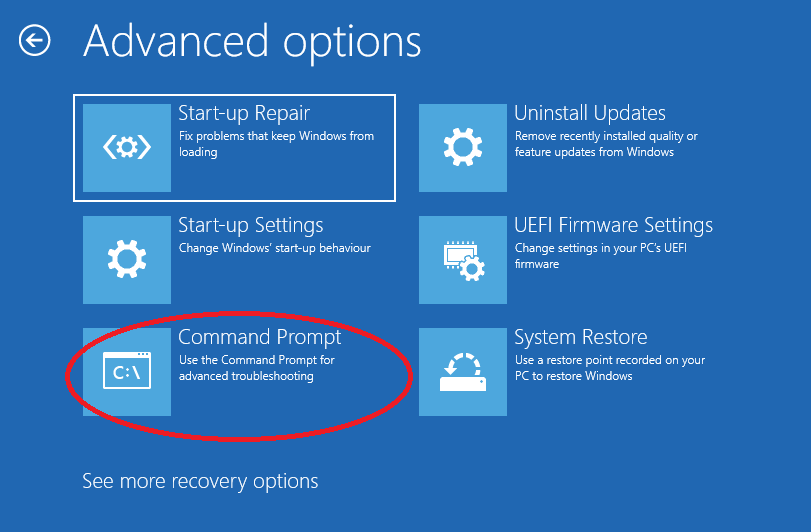
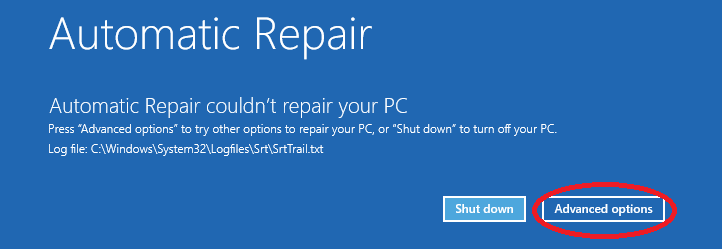
    The select Advanced Options, then Troubleshoot, Advanced Options, Command Prompt.

    We need to change a registry entry, which we can do with a few tricks.

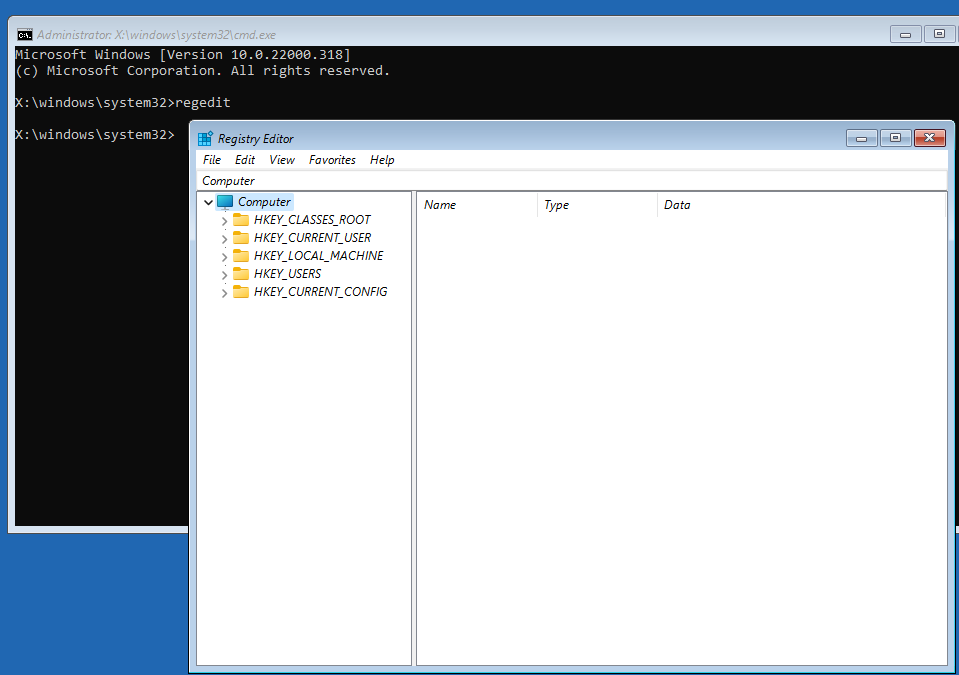
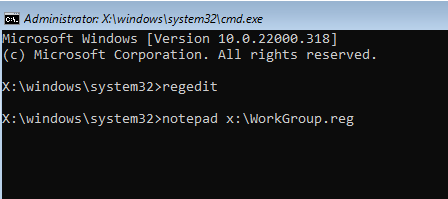
    First, run regedit.

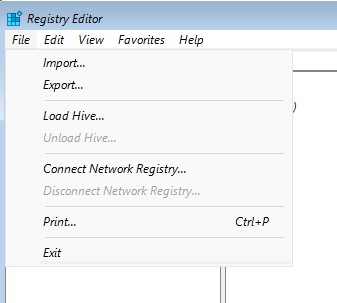
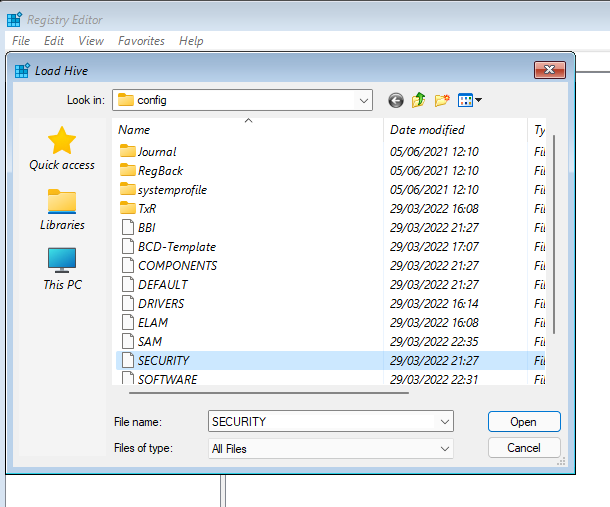
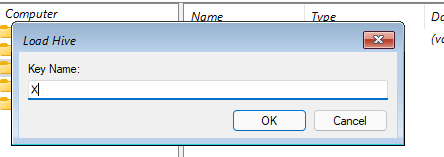
    Then, select HKEY_LOCAL_MACHINE, and do File \ Load Hive… and load the hive C:\Windows\System32\config\SECURITY at KeyName ‘X’.

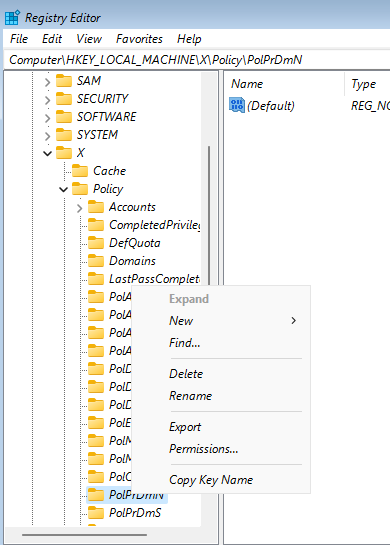
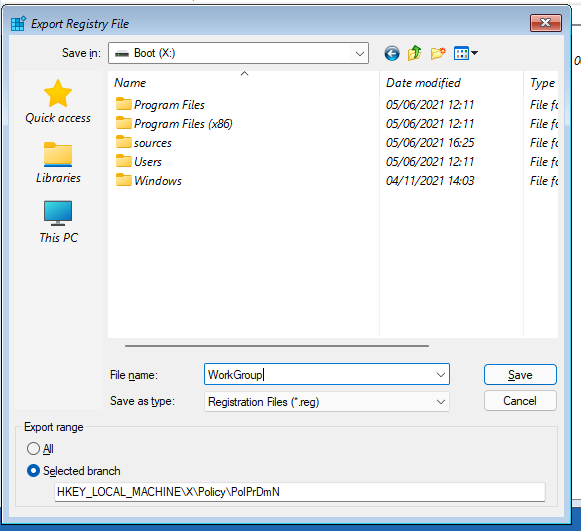
    Navigate to the key HKEY_LOCAL_MACHINE\X\Policy\PolPrDmN and Export it to X:\WorkGroup

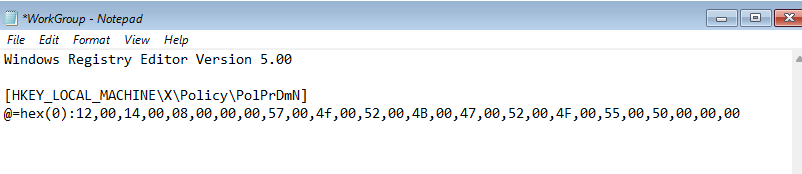
    Then edit X:\WorkGroup.reg: in the Command Prompt, run notepad X:\Workgroup.reg

    Change the key so the Workgroup has a different name.

    The default name ‘WORKGROUP’ would have the setting:

    @=hex(0): 12 00 14 00 08 00 00 00 57 00 4F 00 52 00 4B 00 47 00 52 00 4F 00 55 00 50 00 00 00

    Close Notepad (and save the changes), then go back to RegEdit and import WorkGroup.reg

    Close Regedit, Exit out of Command Line and reboot.

  • Hello world!

    Welcome to WordPress. This is your first post. Edit or delete it, then start writing!

  • Visual studio 2015 – First App for Windows 8.1/10

    Gone are the days when you could pick up a copy of Delphi, drag a few widgets onto a form and have the beginnings of an application. Right now, I’m wrestling with creating a Windows app that will run on both phone and tablet (one app, two platforms). This post is an attempt to write down the steps I’m taking to create the skeleton of the app.

    The requirement

    The App will have several pages and you can swap between the pages by swiping left or right. The content of these pages is not important, so in this trial app, it will just be some plain text.

    I’m using Visual Studio 2015, writing in C# and initially targeting Windows 8.1.

    Beginning

    Create a solution, and a skeleton app: C#\Windows\Windows 8\Universal –> Blank App
    This creates two projects within the solution.

    If you want the template navigation (forward and back pages), you can follow (eg) Mike Taulty’s blog post. to change the MainPages from ‘Blank’ to ‘Basic’ pages (delete the MainPage and create a Basic Page called MainPage). This gives a simple way to change pages by calling:

     Frame.Navigate(typeof(TargetPage),"thisPageName");

    For ‘swipe’ navigation, we need to use Gestures, and the application framework support these ‘out of the box’.

    We have to catch the ManipulationStarted and ManipulationCompleted events. To do this:

    • name the outermost gird object: P1Grid
    • double click on the event: ManipulationStarted and code it as:
    private void P1Grid_ManipulationStarted(object sender, ManipulationStartedRoutedEventArgs e)
    {
         startX = e.Position.X;
    }
    
    • double click on the event: ManipulationCompleted. In this example, startX > e.Position.X means swipe right to left. use < instead to swipe left to right:
    private void P1Grid_ManipulationCompleted(object sender, ManipulationCompletedRoutedEventArgs e)
    {
        if (startX > e.Position.X)
           Frame.Navigate(typeof(SecondPage), this.pageTitle.Text);
    }
    • we also need to define a variable:
    private double startX;
    • finally we need to change the Manipulation Mode of P1Grid to TranslateX.

    Now, running the app lets you swipe from right to left to change the page.

    Visual Feedback

    Users like some feedback when they’re doing something like swiping left/right, and we can add an effect where the showing page is squashed in the direction of the swipe. The XAML objects have transformation built in that do what we want.

    • We need to modify the xaml code to give object names for the transformation controls. The following goes inside definition of P2Grid:
    <Grid.Projection>
        <PlaneProjection x:Name="P1Projection" GlobalOffsetX="0"/>
    </Grid.Projection>
    <Grid.RenderTransform>
        <CompositeTransform x:Name="P1Transform" ScaleX="1"/>
    </Grid.RenderTransform>
    • then we add an event handler for ManipulationDelta. We calculate how much to squash and then set the transform to both squash and then offset P1Grid:
    private void P1Grid_ManipulationDelta(object sender, ManipulationDeltaRoutedEventArgs e)
    {
       double squash = (P1Grid.RenderSize.Width - (startX - e.Position.X) / 4) / P1Grid.RenderSize.Width;
        if (squash >= 1)
        {
            P1Projection.GlobalOffsetX = 0;
            P1Transform.ScaleX = 1;
        }
        else
        {
            P1Projection.GlobalOffsetX = P1Grid.RenderSize.Width * (1 - 1/squash);
            P1Transform.ScaleX = 1/squash;
    // or to animate in the opposite direction:
    //	P1Projection.GlobalOffsetX = P1Grid.RenderSize.Width * (squash-1);
    //	P1Transform.ScaleX = squash;
        }
    }
    • Finally, we need to reset the transformation when the swipe has finished. We add two lines to the ManipulationCompleted code:
    P1Projection.GlobalOffsetX = 0;
    P1Transform.ScaleX = 1;

    For two pages moving back and forth, or for more pages, just combine the two directions of swiping.

  • Windows Installer – free up disk space without losing anything

    It is possible to move the folder C:\Windows\Installer (which tends to get quite large). The process is to copy the folder to another drive, then create a link from the new location to the old location so Windows thinks nothing has changed.

    The process below does this ‘safely’ so you can reverse the change if something goes wrong. You can delete the Installer.X folder when you’re ready. x: can be any accessible drive.

    attrib -h -s C:\Windows\Installer
    xcopy /s /h /o  C:\Windows\Installer x:\Windows\Installer
    ren C:\Windows\Installer C:\Windows\Installer.X
    mklink /D C:\Windows\Installer x:\Windows\Installer
  • Knoppix 7.4 – How to create USB bootable disk

    Knoppix 7.4 has a desktop icon to create a flash disk.

    This in how do create the usb drive without creating a CD.

    1. Create a new virtual computer using the downloaded Knoppix .iso file

    2. Redirect a USB flash drive to the virtual computer and start the virtual computer.

    3. Click on the icon ‘Install KNOPPIX to flash disk’
    (as of Nov14) This only works if you select ‘Overlay partition’. You can reduce the size of the overlay partition to leave space on the first partition usable for general Flash Disk purposes. (If the partitioning on the USB disk is non-standard, you may need to clear it and then delete entries from /etc/fstab and then restart the virtual computer).

  • Microsoft Exchange Certificates

    The problem: How to use the Server’s CA to create a certificate with all the names you need included.

    Typically, an exchange certificate should have the names for the externally visible website and the autodiscover site – which may not match the actual name of the server.

    This is what you need to do.

    Create a .cer Certificate – using Powershell

    Using Powershell, you can run a script: CreateCertificate.ps1

    Param([Parameter(Mandatory=$true)] $f)
    $data = New-ExchangeCertificate -GenerateRequest -KeySize 2048 -SubjectName "c=GB, l=<location>, o=<organization>, cn=<website>" -includeAutoDiscover -includeAcceptedDomains -DomainName <domain-name> -privatekeyexportable $true
    Set-Content -path "$f.csr" -Value $data
    Certreq -submit -attrib "CertificateTemplate:WebServer" "$f.csr" "$f.cer"

    Then run the script with the parameter of the name of the certificate.

    Create a .cer Certificate Request – using a text file

    To avoid typing in all the details every time, create a file: CertificateData.inf (see http://technet.microsoft.com/en-gb/library/ff625722(v=ws.10).aspx for source):

    [Version]
    Signature="$Windows NT$"
    
    [NewRequest]
    Subject = "CN=<website>" ; Remove to use an empty Subject name.
    ;Because SSL/TLS does not require a Subject name when a SAN extension is included, the certificate Subject name can be empty.
    
    Exportable = FALSE   ; TRUE = Private key is exportable
    KeyLength = 2048     ; Valid key sizes: 1024, 2048, 4096, 8192, 16384
    KeySpec = 1          ; Key Exchange – Required for encryption
    KeyUsage = 0xA0      ; Digital Signature, Key Encipherment
    MachineKeySet = True
    ProviderName = "Microsoft RSA SChannel Cryptographic Provider"
    
    RequestType = PKCS10 ; or CMC.
    
    [EnhancedKeyUsageExtension]
    ; If you are using an enterprise CA the EnhancedKeyUsageExtension section can be omitted
    OID=1.3.6.1.5.5.7.3.1 ; Server Authentication
    OID=1.3.6.1.5.5.7.3.2 ; Client Authentication
    
    [Extensions]
    ; If your client operating system is Windows Server 2008, Windows Server 2008 R2, Windows Vista, or Windows 7
    ; SANs can be included in the Extensions section by using the following text format. Note 2.5.29.17 is the OID for a SAN extension.
    2.5.29.17 = "{text}"
    _continue_ = "dns=<website>&"
    _continue_ = "dns=<website.autodiscover>&"
    ; Multiple alternative names must be separated by an ampersand (&).
    
    CertificateTemplate = WebServer  ; This is the template name used by the Cerficiate authority.

    Then run:

    certreq -new CertificateData.inf CertificateData.req
    certreq -submit CertificateData.req CertificateData.cer

    Convert .cer to .pfx and import into Exchange

    Convert .cer to .pfx by importing the .cer into a certificate store and then exporting it:

    Run mmc.exe, and Add the Certificates snap-in (Computer account, Local Computer).

    Import the certificate into the Personal\Certificates folder and then export it
    – export the private key, select PKCS#12 and include all certificates in the path and export all extended properties. You will need to provide a password.

    Next, run Exchange Management Console as Administator.

    Select Server Configuration, and under Exchange Cetrtificates, import the certificate you just exported. Then run Assign Services to Exchange and select all (except Unified Messaging).

    You may need to restart IIS for the certificate to be picked up.

  • Remove Windows 8 from a domain without the domain admin password

    There are situations where you need to break into Windows 8 (or 7, or XP).
    For example, when a domain controller has disappeared and there are no cached credentials on the computer.

    You will need:

    A windows 8 (or 7) installation disk.

    Here’s how:

    There are three steps:

    1. Break in to the computer so we have a command prompt where we can ‘do things’
    2. Create a new user with local administrator rights
    3. Remove the computer from the domain.

    Step 1: break in

    Boot the computer from the Windows 7/8 Install Disk (I’m using Window 8 for this example):

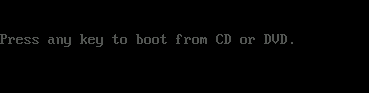
    Press any key to boot from CD or DVD

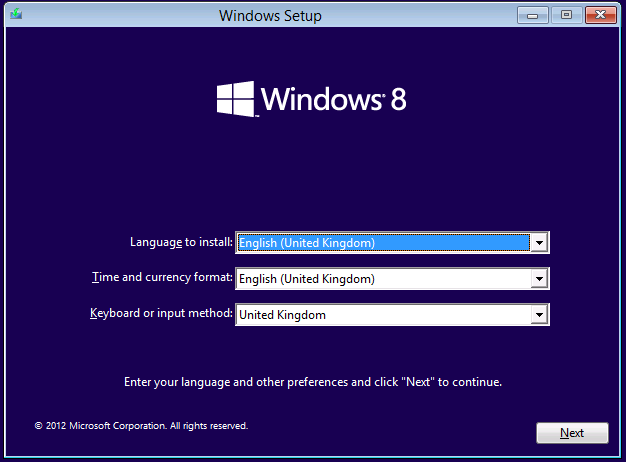
    Select the language appropriate for your computer/keyboard:

    Select Language Preferences and press Next

    If you have the Windows 8 installation disk, you can press Shift+F10 here and skip the next few screens – that brings up a command prompt immediately.
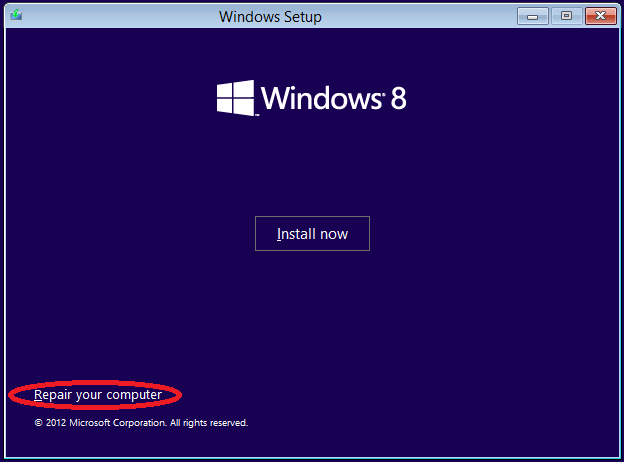
    Or click Next and then ‘Repair your computer’:
    Click 'Repair your computer'

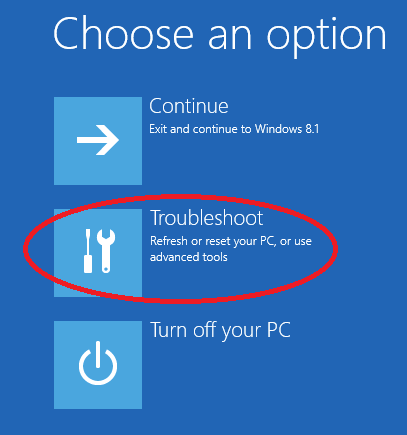
    Then select: ‘Troubleshoot’:

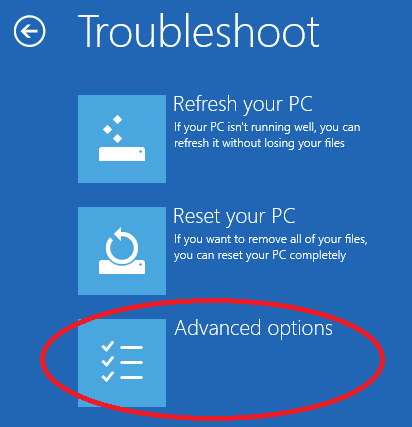
    The select Advanced options:

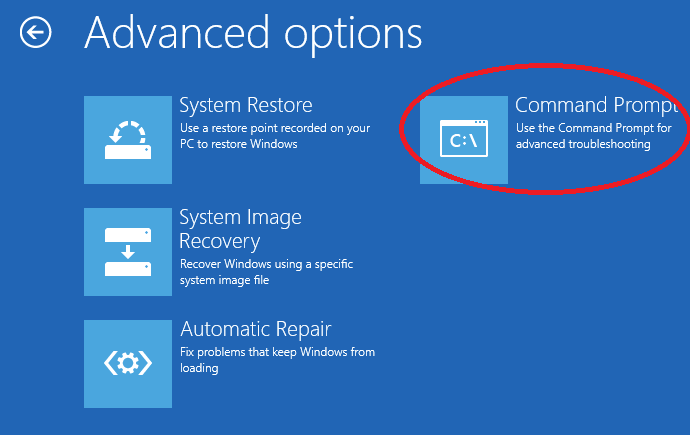
    Finally, select Command Prompt:

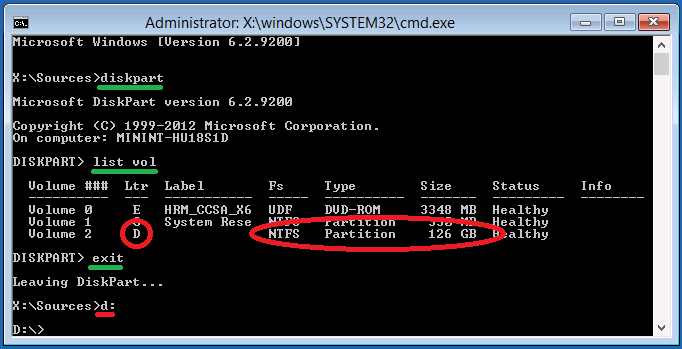
    Then you need to check and select the drive letter where windows is installed (it is not always the C: you normally see within Windows). You can do this with ‘DISKPART’ and ‘LIST VOL’. The drive should be clear from what you see unless you have a complicated disk setup:

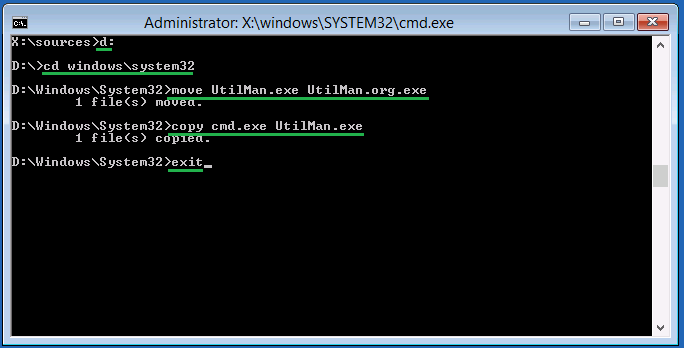
    Then we temporarily replace Utilmon.exe with cmd.exe and reboot:

    Step 2: Creating an user with administrator rights

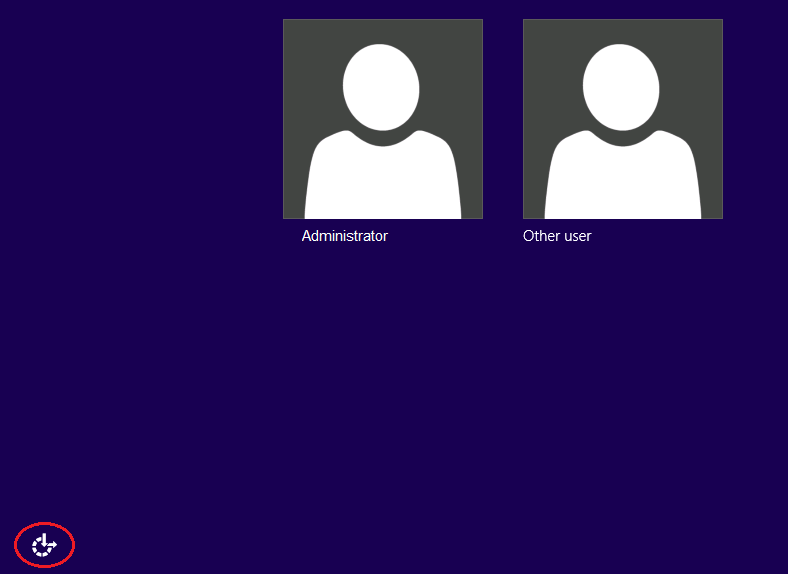
    Then we let windows boot through to the sign-on screen. UtilMan is run by clicking on the Ease of Access button, which brings up our command line.

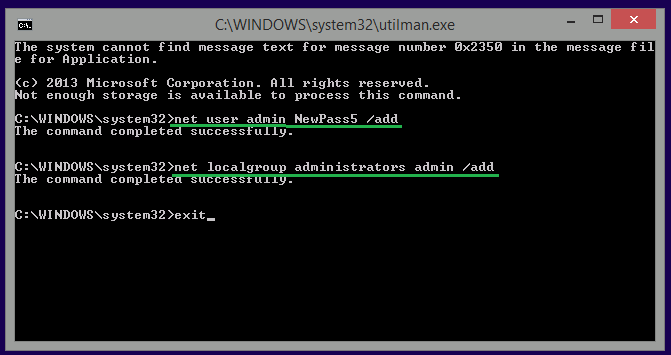
    If we don’t have a valid user, we can now create one:

    net user admin NewPass5 /add && net localgroup administrators admin /add

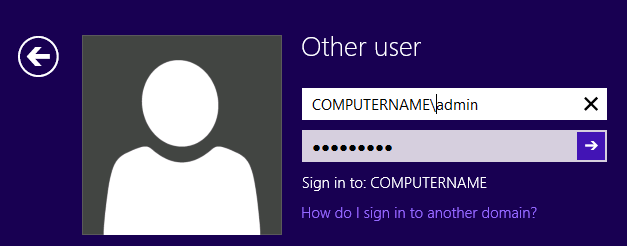
    Then close the window and log on with the newly created user: admin.

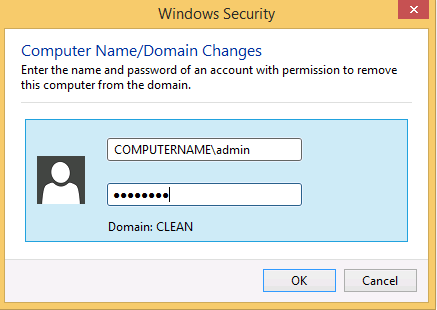
    Note: you do need to type the name of the computer in front of user name (COMPUTERNAME\admin). If you don’t know what the computer is called, just type ‘administrator’ as the username and Sign in to: will tell you the computer name.

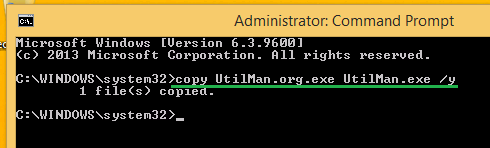
    At this point, you can undo the ‘UtilMan.exe’ break-in by opening a command prompt (as admin) and undoing what we did before. [Windows]+X and select ‘Command Prompt (admin)’:

    Step 3: Forcefully removing the computer from the domain

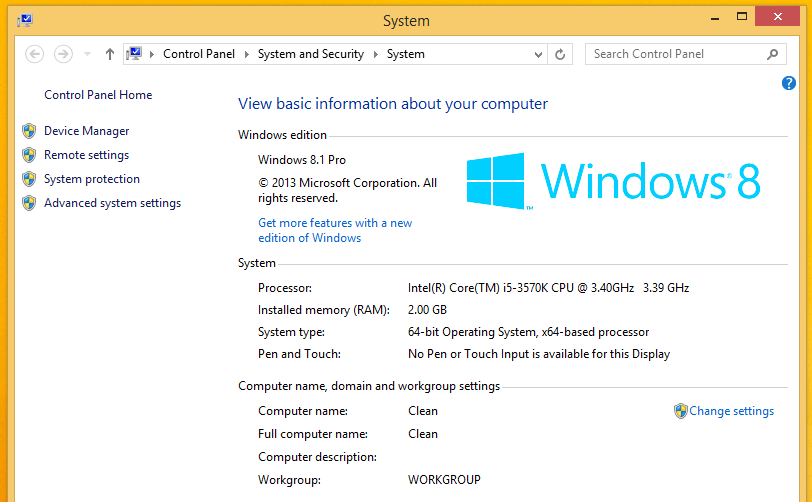
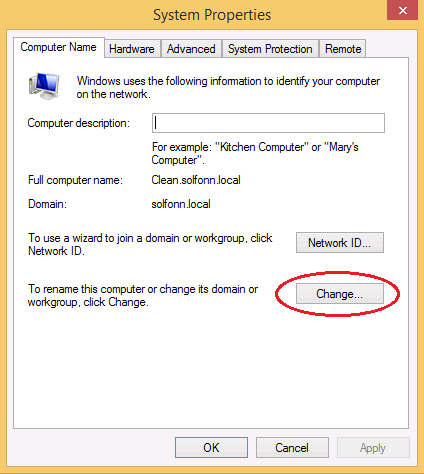
    Bring up the system properties: Alt+X, System, and click on Computer name, domain and workgroup settings: Change settings:

    Then click ‘Change…’ to change the domain or workgroup:

    Set the computer to be in the Workgroup: WORKGROUP:

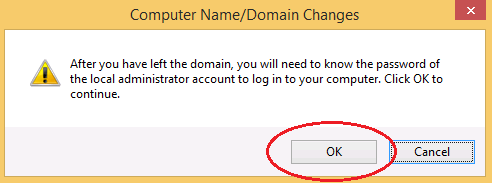
    Confirm that we know the local administrator password (set the admin user we created in step 2 is fine):

    You will be asked for credentials: use the credentials for the admin user we created:

    Then OK all the dialog boxes and reboot.
    Log back in as ‘admin’ and set up any users you need.

  • Fix a non-booting Linux disk

    If you boot from a Linux CD, you can switch to your non-booting disk as follows:

    1. Find the device that is your non-booting disk.
    This could be /dev/sda, /dev/sdb etc. (Disks presented as SCSI)
    This could be /dev/hda, /dev/hdb etc. (Disks presented old-style HDs)
    Or even /dev/vda etc. (Disks in virtual systems)
    2. Mount it, and then remound /dev, /proc, and /sys onto the non-booting disk

    mount /dev/sda2 /mnt
    mount --rbind /dev /mnt/dev
    mount --rbind /sys /mnt/sys
    mount --rbind /proc /mnt/proc

    3. Set your non-booting disk to root

    chroot /mnt

    Now you can run your normal commands to fix your boot

    grub2-install /dev/sda # restore grub
    # Note: you may need to update the Disk UUID in /boot/grub2/grub2.cfg
    # to the value returned by blkid /dev/sda2
  • Raspberry Pi WiFi Automatic Connection

    By default, RPi doesn’t connect to the WiFi automatically, which is annoying, especially when you don’t have keyboard/mouse/screen connected.

    You can fix this by:

    First connect to the WiFi using the WiFi app. This will include the following lines in /etc/network/interfaces:

    allow-hotplug wlan0
    iface wlan0 inet manual
    wpa-roam /etc/wpa_supplicant/wpa_supplicant.conf
    iface default inet dhcp

    Then edit /etc/wpa_supplicant/wpa_supplicant.conf

    ctrl_interface=DIR=/var/run/wpa_supplicant GROUP=netdev
    update_config=1
    network={
            ssid="SSID"
            psk="pre-shared-key"
            proto=RSN
            key_mgmt=WPA-PSK
            pairwise=TKIP
            auth_alg=OPEN
    } 

    You can repeat the network block for other networks you’d like to automatically connect to.